
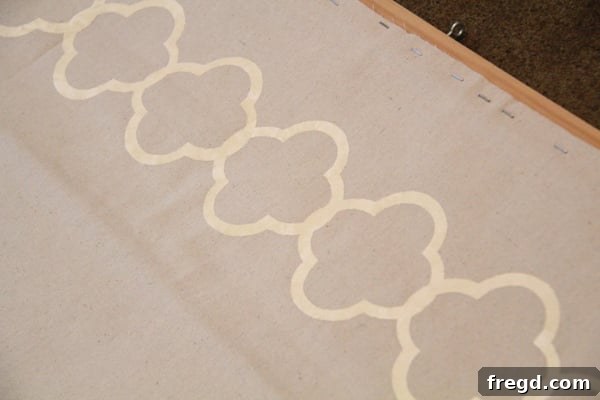
Yes, after numerous attempts and fine-tuning, I am thrilled to announce that I have finally perfected the art of cutting stencils on Contact Paper using my Silhouette machine. This breakthrough has allowed me to successfully create beautiful, crisp stencils time and time again, and I simply couldn’t wait to share my exact process and optimal settings with all of you.
For those who followed my previous tutorial, you’ll remember the DIY Roman Shades project. Today, we’re taking those custom window treatments to the next level by adding a stunning stenciled design to their upper edge. This personal touch elevates the entire look, transforming simple shades into bespoke pieces of decor. Below, I’ll walk you through every step, from design selection to the final paint application, ensuring you can replicate this success in your own home.
Unlocking Perfect Stencils: Essential Silhouette Settings for Contact Paper
Creating custom stencils can be a game-changer for any DIY enthusiast, offering endless possibilities for personalizing home decor, clothing, and crafts. The key to flawless results, especially when working with materials like Contact Paper, lies in understanding and applying the correct machine settings. Contact Paper is an economical and versatile material for stencil making, but it requires precision to achieve clean cuts without tearing or not cutting through adequately. My perfected settings for the Silhouette machine ensure that your blade glides effortlessly, leaving you with a professional-grade stencil every time.
Let’s dive into the specifics of how to prepare your design and your Silhouette machine for stencil perfection.
Step 1: Selecting Your Design from the Silhouette Online Store
The journey to a beautiful stencil begins with the perfect design. The Silhouette Online Store offers an expansive library of intricate patterns and borders, making it easy to find something that perfectly matches your aesthetic. For my Roman Shades project, I sought a classic yet modern motif, and I found just the thing. The design I chose is called ‘2 quatrefoil borders’, an elegant and timeless pattern that adds a touch of sophistication to any fabric.
Step 2: Customizing Your Design in Silhouette Studio
Often, a downloaded design might contain multiple elements when you only need a specific part. This was the case with my chosen quatrefoil border. To isolate the single border I wished to use, the first crucial step is to ungroup the design elements. This gives you individual control over each component of the pattern.
Once ungrouped, you can clearly see the separate borders. I then selected the border I didn’t need and, with a simple click of the delete button, removed it from my workspace. This streamlined approach ensures you’re working only with the desired element, preventing any accidental cuts or design complications.
Step 3: Orienting and Sizing Your Stencil
After isolating your design, the next step is to prepare it for cutting by rotating and setting the correct dimensions. Depending on your project and the orientation of your Contact Paper, you might need to rotate your design to maximize space or fit specific requirements. I rotated my quatrefoil border to align with how I intended to feed the Contact Paper into the machine, optimizing for its width.
Crucially, when working with Contact Paper without a cutting mat, you must adjust the page settings in Silhouette Studio. Navigate to the ‘Page Setup’ panel and ensure you select ‘no cutting mat’. This tells your Silhouette machine to expect a roll or a longer piece of material that will be fed directly through its rollers. Once ‘no cutting mat’ is selected, you can then set your precise dimensions on the side panel, mirroring the width of your Contact Paper. This ensures your design is scaled accurately and fits perfectly within the available cutting area, preventing any parts from being cut off and wasting material.
Once your page dimensions are set, drag your design to fill the newly defined workspace. This step is essential for maximizing your stencil’s size and ensuring it aligns correctly with the physical material you’ll be feeding into the machine. Double-check that your design fits comfortably within these boundaries, leaving a small margin if desired for easier handling and application.
Step 4: The Golden Settings for Cutting Contact Paper Stencils
This is perhaps the most critical part of the entire process: defining the precise cut settings for Contact Paper on your Silhouette machine. Through extensive trial and error, I’ve discovered the optimal balance that provides clean, consistent cuts without damaging the Contact Paper or dulling your blade prematurely. These settings are a game-changer for anyone looking to create durable, reusable stencils from this versatile material.
Head over to the ‘Send’ panel in Silhouette Studio. Here, you will adjust your cutting parameters. For Contact Paper, set your **Speed to 8** and your **Thickness (or Force) to 3**. These values ensure the blade moves at a controlled pace, allowing for intricate details to be cut accurately, while providing just enough pressure to cleanly slice through the Contact Paper’s adhesive and vinyl layers without cutting through the backing. Remember, too much speed can lead to jagged edges or tearing, and too much thickness can cut into your mat (if you were using one) or the machine’s base, while too little will result in incomplete cuts and frustration.
These settings are specifically tailored for Contact Paper. If you’re using a different stencil material, always perform a test cut first. However, for Contact Paper, consider these your go-to parameters for consistent, professional stencil outcomes.
Step 5: Preparing Your Silhouette Machine and Loading Contact Paper
Before you hit “send,” a physical adjustment to your Silhouette machine might be necessary. The machine features an adjustable bar that accommodates different material widths. Since Contact Paper typically comes in rolls narrower than a standard cutting mat, you will need to slide this bar to the shorter setting. This simple adjustment ensures the rollers properly grip the Contact Paper, feeding it smoothly and accurately through the machine during the cutting process. Don’t worry, your Silhouette machine’s manual or on-screen prompts will guide you through this quick and easy process, illustrating exactly how to position the bar for narrower materials.
Once the bar is adjusted, it’s time to load your Contact Paper. An advantage of using Contact Paper for stencils is that it can often be fed directly into your Silhouette machine without the need for a cutting mat. This method is particularly useful for longer stencil designs or when you want to conserve your cutting mats. Carefully insert the edge of your Contact Paper under the rollers, ensuring it’s straight and properly aligned. Then, use the load button on your machine to feed it in, ready for cutting. This direct-feed capability streamlines the stencil-making process, making it quicker and more efficient.
With your machine and material prepared, you are now ready to hit ‘Send’ and watch your custom stencil come to life! The Silhouette machine will precisely cut your design, creating a perfect stencil ready for application.
Step 6: Applying Your Stencil and Painting Your Fabric
Once your stencil is cut, carefully peel away the excess Contact Paper, leaving only your desired design adhered to its backing. Now comes the exciting part: applying the stencil to your fabric. For this Roman Shades project, I gently positioned the Contact Paper stencil onto the fabric, ensuring it was perfectly straight and smooth. Take your time during this step to press down firmly, especially around the edges of the design, to prevent any paint bleed under the stencil. The adhesive nature of Contact Paper makes it ideal for securing the stencil tightly to the fabric surface, ensuring crisp, clean lines.
With the stencil securely in place, it’s time to paint! I used high-quality acrylic paint for this project, applied with a stencil brush in light, dabbing motions. The key to crisp lines is to use minimal paint on your brush and build up the color in thin layers. Avoid overloading your brush, as this can cause paint to seep under the stencil, ruining your clean design. Work slowly and methodically, ensuring even coverage across the entire design. Acrylic paint works wonderfully on fabric, providing vibrant color and good adhesion, especially when heat-set afterwards for increased durability and washability.
Once the paint has dried to the touch, carefully peel back the Contact Paper stencil. You’ll be left with a perfectly crisp, custom design. The satisfaction of revealing your handiwork after all those steps is truly immense, and the results speak for themselves!
The Beautiful Final Result: Custom Roman Shades with a Stenciled Touch
And here it is – the stunning final result! The quatrefoil border adds a sophisticated and custom flair to the Roman Shades, demonstrating just how impactful a simple stenciled design can be. This project not only enhances the aesthetic of the room but also showcases the incredible versatility of your Silhouette machine and the effectiveness of Contact Paper as an affordable and reliable stencil material. From selecting a digital design to applying the final coat of paint, each step contributes to a personalized piece that truly reflects your style and craftsmanship. The precision of the Silhouette cuts, combined with the ideal settings I’ve shared, ensures a professional finish that rivals even the most expensive store-bought decor.
I sincerely hope these detailed instructions and perfected settings prove immensely helpful for your next DIY stencil project. Whether you’re customizing fabrics, walls, or furniture, mastering Contact Paper stencils with your Silhouette opens up a world of creative possibilities. Don’t hesitate to experiment with different designs and colors – the process is surprisingly straightforward once you have the right guidance and these proven settings.
If you found this tutorial valuable and inspiring, I would be absolutely delighted if you could Pin it to your favorite DIY boards and Share it with your crafting community below! Your support helps inspire more creative projects and empowers fellow crafters.
Happy crafting, and have a wonderful Monday! I’m already looking forward to sharing my next exciting project with you tomorrow!
~Whitney