Welcome, fellow makers and DIY enthusiasts! Today, Ashley and I are thrilled to share our passion for Glowforge Machines – these incredible 3D laser printers have truly revolutionized our creative process. We’re continually amazed by the seemingly endless capabilities of these powerful tools, discovering new techniques and project ideas with every use. As the crisp air of autumn ushers in the holiday season, I found myself inspired to create something special for our home. With the help of my Glowforge Pro, I crafted a beautiful, custom DIY wooden sign for our entryway in under an hour. It’s a project that combines personal meaning with the efficiency and precision that only a Glowforge can deliver. I’m excited to walk you through the creation of this charming piece, and for those ready to embark on their own laser cutting journey, don’t miss out on securing your own Glowforge printer with a discount of up to $500 by checking out THIS LINK!
Table of Contents
DIY Thanksgiving Sign: A Meaningful Project
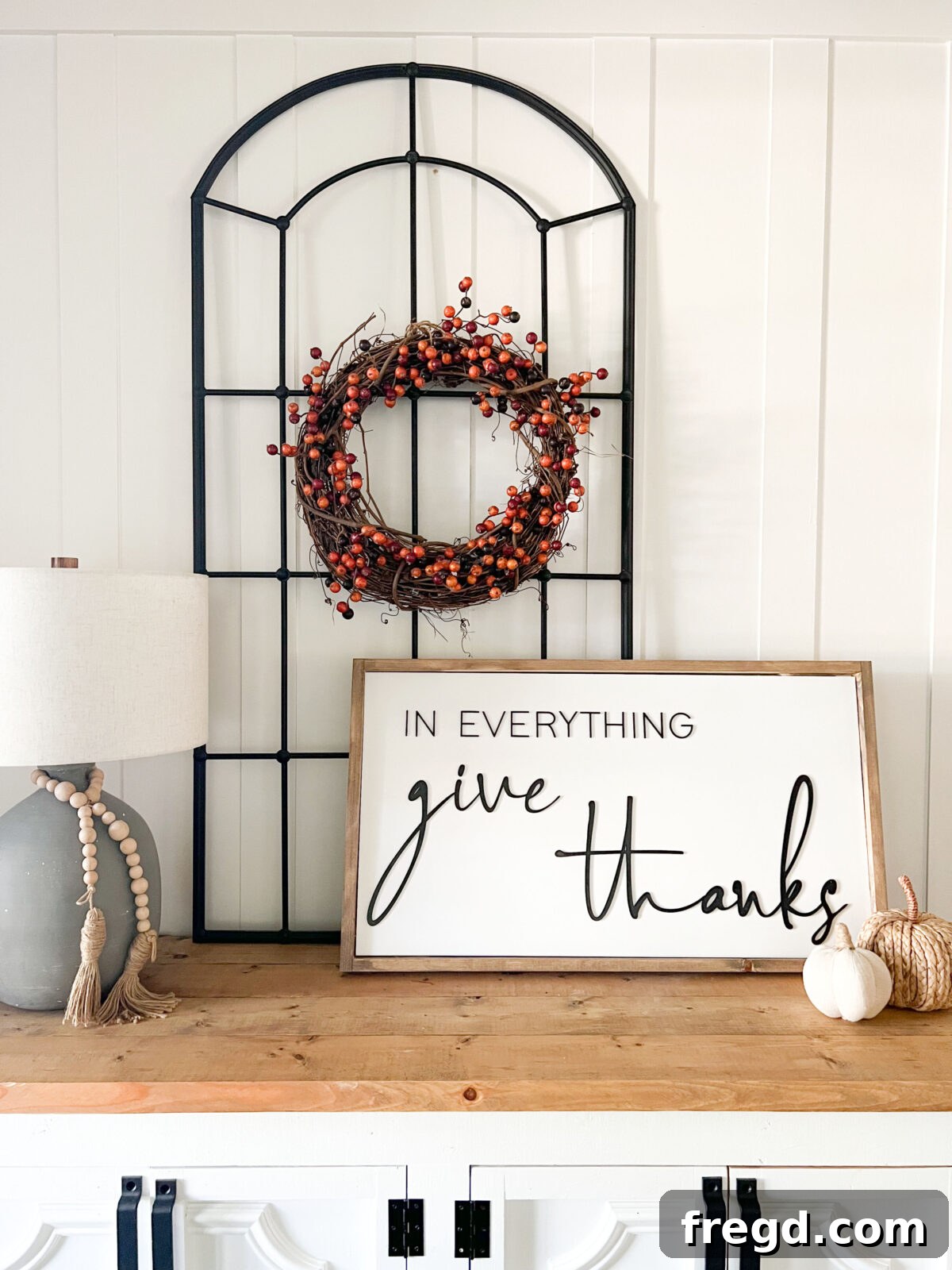
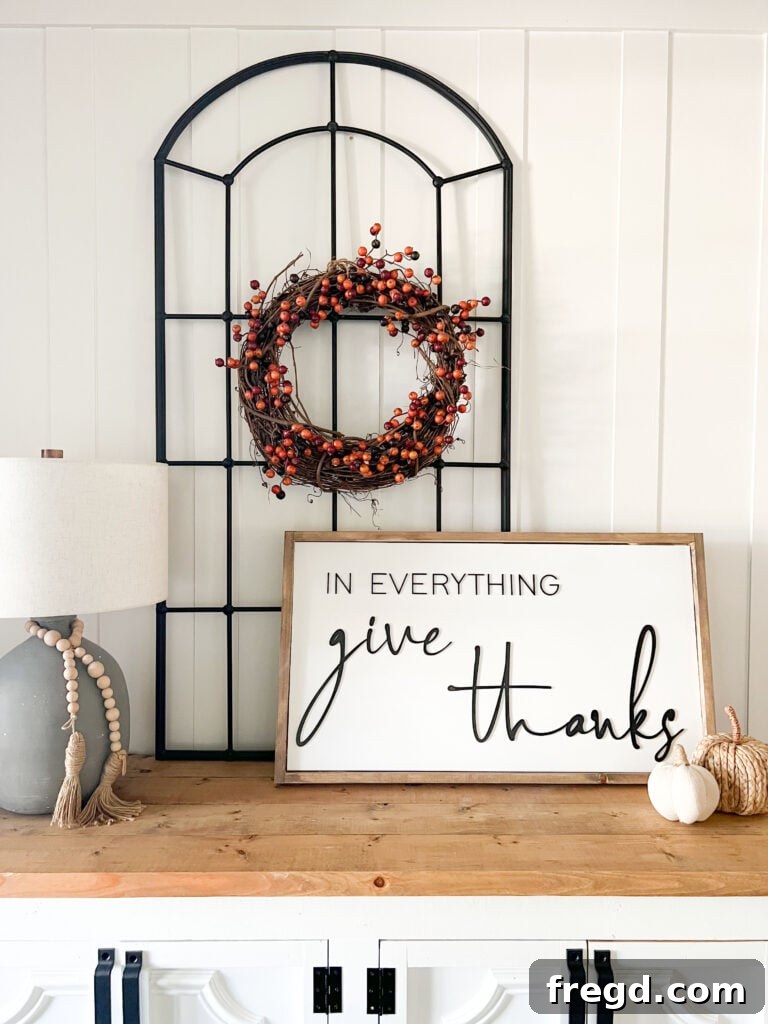
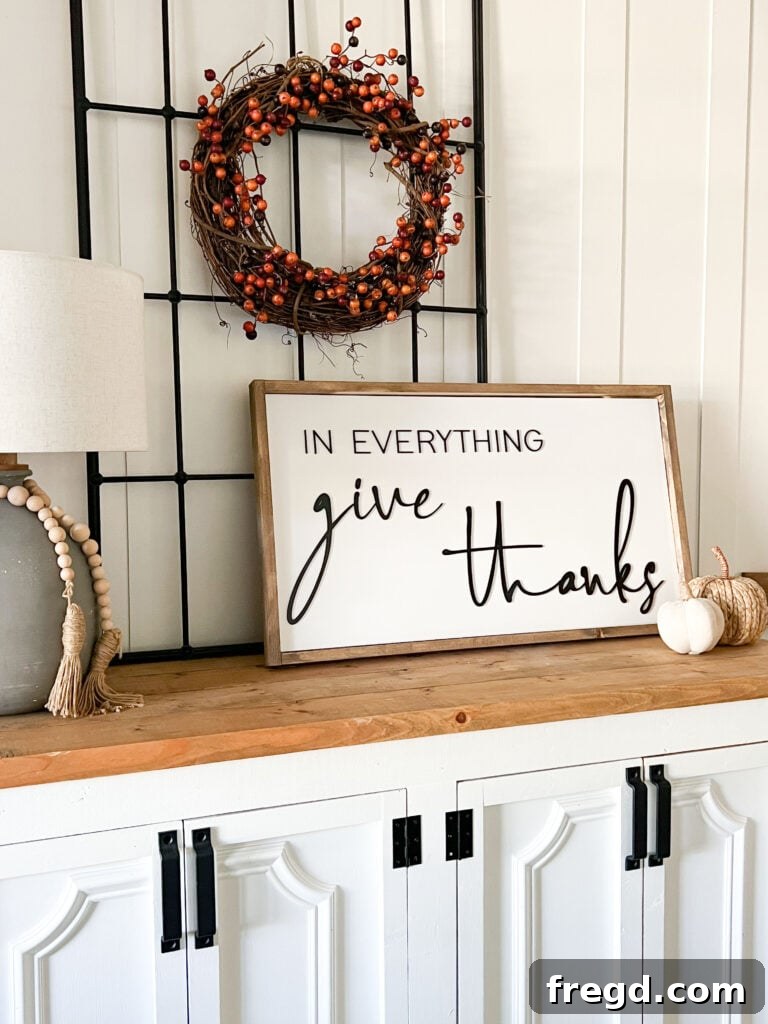
The year 2022 presented my family with its unique set of challenges and difficulties. We navigate daily life with children facing health issues, and my son Jed, who has autism, recently encountered new hurdles that demanded our full attention. Yet, through every trial and triumph, I’ve come to deeply appreciate the importance of gratitude in all circumstances. This realization inspired me to craft a sign that would not only adorn our home but also serve as a constant reminder of the blessings we cherish, especially reflecting on the past year’s journey. The final product exceeded my expectations, radiating warmth and significance. I absolutely adore how it turned out! For a visual guide to the creation process, be sure to check out my detailed reel below, showcasing each step of making this heartfelt sign.
Choosing Your Glowforge: Why We Love the Pro Model
A question we frequently encounter is about the specific Glowforge model we use. Both Ashley and I are proud owners of the Glowforge Pro. While it represents a more significant initial investment compared to other models, we firmly believe its advanced features offer unparalleled value and flexibility. Our absolute favorite feature, without a doubt, is the Passthrough slot. This ingenious design element allows us to feed materials of virtually endless length through the machine, enabling the creation of expansive projects that would otherwise be impossible. This is particularly advantageous for crafting larger decorative pieces, custom furniture additions, or even long-format signage. Having owned my Glowforge Machine for just over a year now, my admiration for it has only grown. The more I integrate it into my crafting, the more I uncover its vast potential and diverse project applications. Despite the financial commitment, I’ve witnessed countless individuals transform their Glowforge machines into thriving small businesses, while others have propelled their existing ventures to extraordinary new heights. It’s a testament to the machine’s capability to generate tangible returns, whether through direct sales of crafted items or by enhancing product lines. But enough about the business aspect – let’s dive into the exciting part and I’ll show you exactly how I brought this beautiful sign to life!
Selecting the Perfect Material for Your Sign Backing
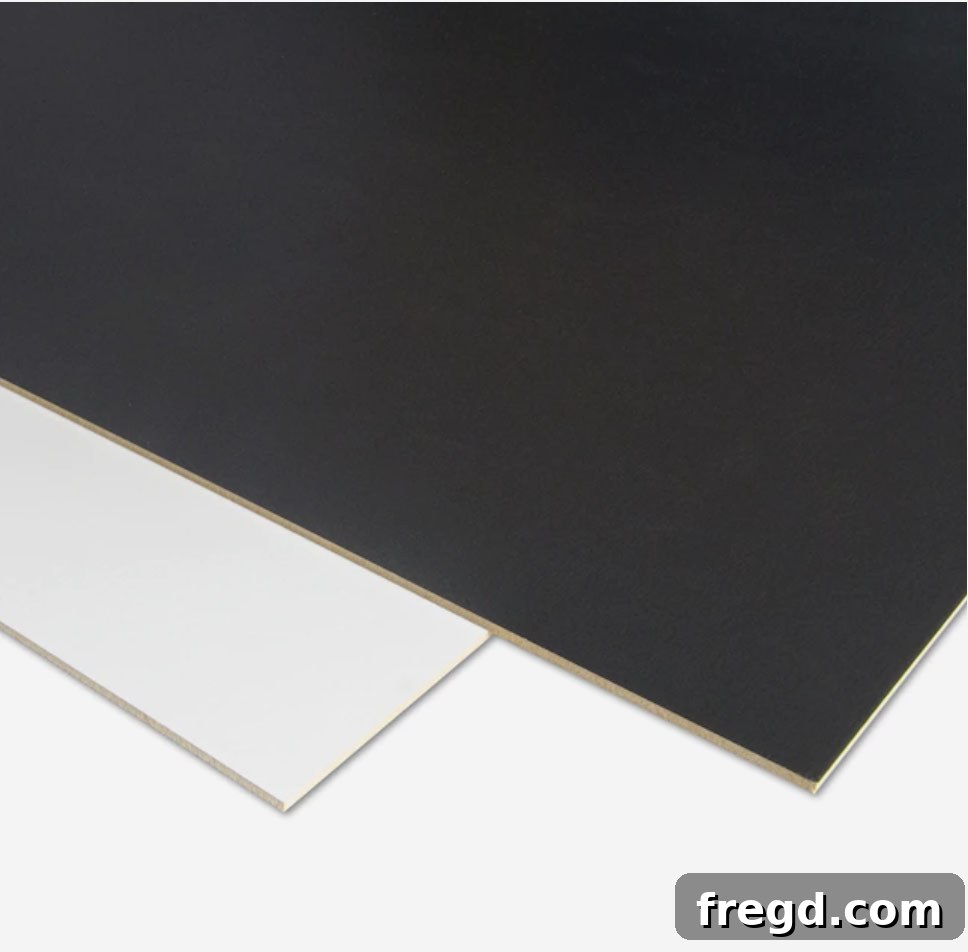
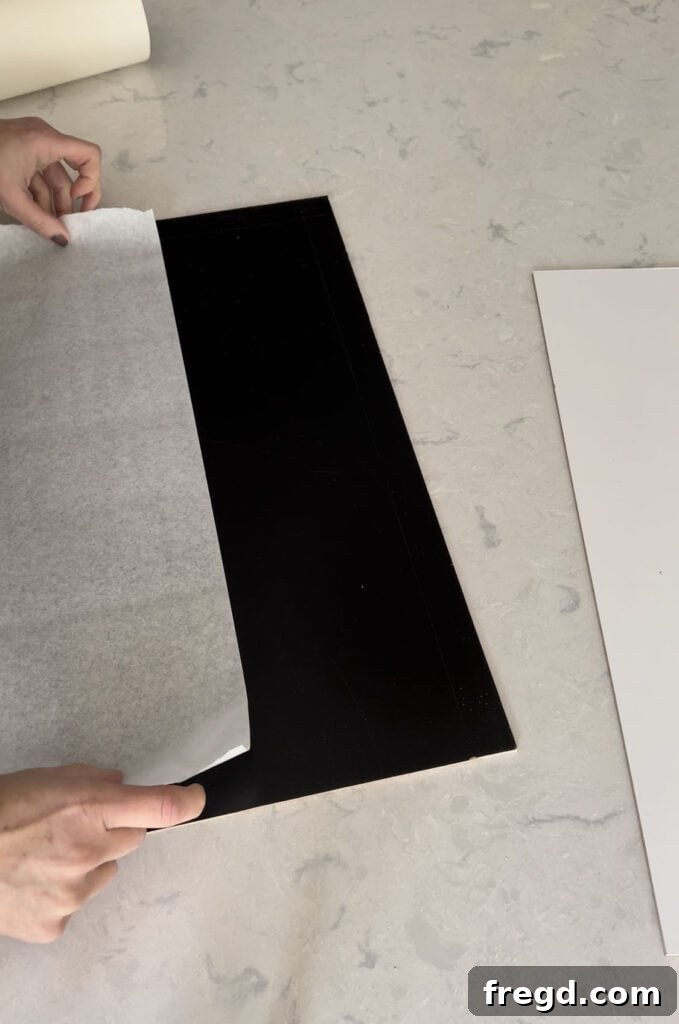
When it comes to materials for our Glowforge projects, one of our top recommendations for both cutting and engraving is the readily available and incredibly affordable whiteboard/blackboard material from Lowe’s. This versatile board serves as an ideal backing for signs, offering a clean, pre-finished white surface that mimics a beautifully painted look – a fantastic time-saver! Conversely, the blackboard side provides excellent contrast for laser-cut lettering and various design elements, and it can also be painted if desired. For this specific project, the crisp white finish of the whiteboard was exactly what I needed, eliminating any extra painting steps. My first consideration was the desired size of my sign. After determining the dimensions, I precisely cut the whiteboard/blackboard to size using my table saw. A helpful tip for those without a table saw: most hardware stores offer cutting services, so you can easily have them cut your board to your exact specifications. This ensures a perfect fit for your project and saves you a step in the process, making it even more accessible for all skill levels.
Crafting Your Designs: The Power of SVG Files for Glowforge
Another aspect we deeply appreciate about our Glowforge printers is their seamless compatibility with digital design files, particularly SVG (Scalable Vector Graphics) files. These vector-based files are the lingua franca of laser cutters, allowing for infinitely scalable designs without any loss of quality – crucial for precise cutting and engraving. With a simple online search, you can unlock a treasure trove of thousands of SVG files, ready to help you bring any creative vision to life. Many of these resources offer free downloads, while platforms like Etsy are a phenomenal source for inexpensive, Glowforge-tested files, often bundled into themes or collections. For those who prefer a more personalized approach, you can create your own SVG files using various design software programs. Popular choices include Inkscape (a free and open-source vector editor), Adobe Illustrator, and Adobe Photoshop. Both Ashley and I have extensive experience with Photoshop Elements, which we leverage to design our unique files. Once our designs are complete, we use a free online file transfer website to effortlessly convert them into laser-ready SVG files. Should you choose to delve into custom design, the vibrant Glowforge community offers an abundance of information, tutorials, and tips to guide you through the process. For this particular sign, I utilized two distinct free fonts to achieve the desired aesthetic: “Alpha Danthe” for the prominent phrase “give thanks” and “Modern Sans Light” for the accompanying text “IN EVERYTHING,” creating a balanced and appealing visual harmony.
Protecting Your Material: The Importance of Masking
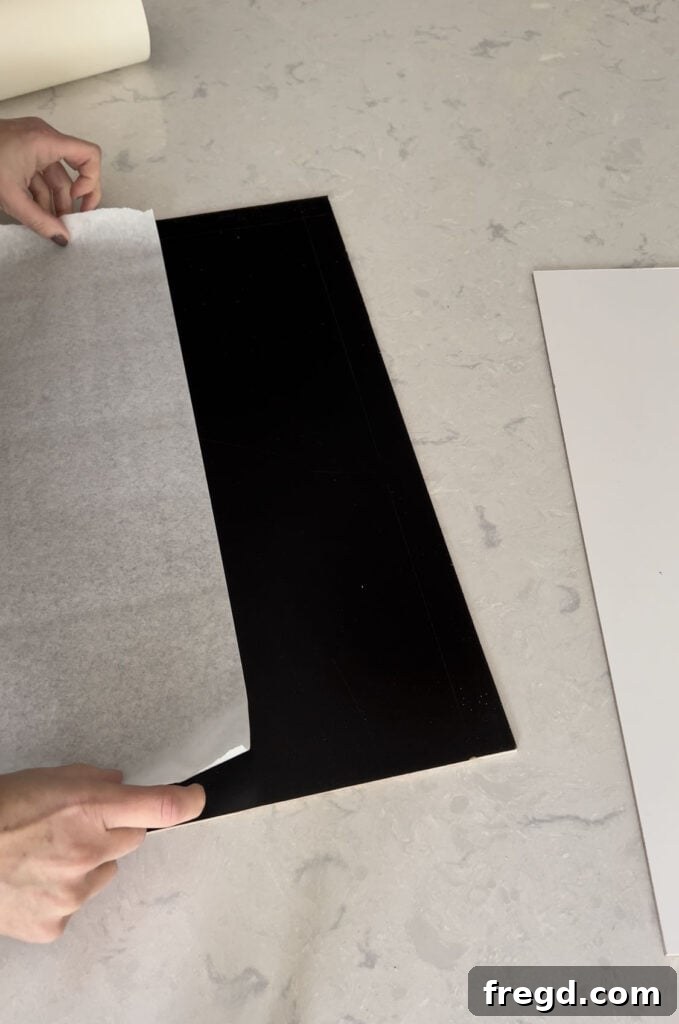
When working with a Glowforge laser cutter, masking your material is a critical step for achieving professional-looking results, especially with certain types of surfaces. Masking involves applying a protective layer to the material, which then shields the areas not being cut or engraved from burn marks, residue, and discoloration caused by the laser’s beam and the fumes it generates. For this project, I used rolled masking, a popular choice among Glowforge users due to its ease of application and effective protection. However, standard masking tape or even painter’s tape can also serve this purpose effectively, offering flexibility based on your preferences and the material at hand. You can find the specific rolled masking I use HERE! I make it a habit to always mask my whiteboard and blackboard materials when cutting, as the white surface is particularly prone to showing any laser residue or scorch marks if left unprotected. The masking ensures that once the cut is complete and the mask is peeled away, the underlying material remains pristine and clean. Interestingly, when I choose to “score” whiteboard (a lighter laser pass that creates a shallow line rather than a full cut), I often forgo masking. This is because scoring typically doesn’t leave stains, and without the mask, the laser tends to score just a bit deeper, creating a more pronounced line which is sometimes desired for certain aesthetic effects.
Optimizing Settings for Whiteboard/Blackboard on Glowforge
Achieving perfect cuts and engravings with your Glowforge requires precise settings tailored to the specific material you’re using. Each material, from wood to acrylic to leather, reacts differently to the laser’s power and speed. Fortunately, the vast and generous Glowforge community is an incredible resource. Many experienced users have diligently tested various materials and shared their optimized settings, providing an invaluable starting point for newcomers. These dedicated Glowforge owner Facebook groups are a treasure trove of collective wisdom, helping you avoid trial-and-error and get to successful results faster. For cutting the whiteboard/blackboard material, I’ve found that a speed of 135 and FULL power consistently delivers clean, crisp cuts. It’s also crucial to accurately set the thickness of the board; for this material, I typically set it at .13 inches. An essential habit I’ve adopted is to always set the focus just before initiating each cut. This ensures the laser beam is perfectly concentrated at the material’s surface, maximizing cutting efficiency and precision. With these settings, this particular whiteboard/blackboard material slices through like butter, making the cutting process incredibly smooth and satisfying.
Constructing a Sturdy Wood Frame for Your DIY Sign
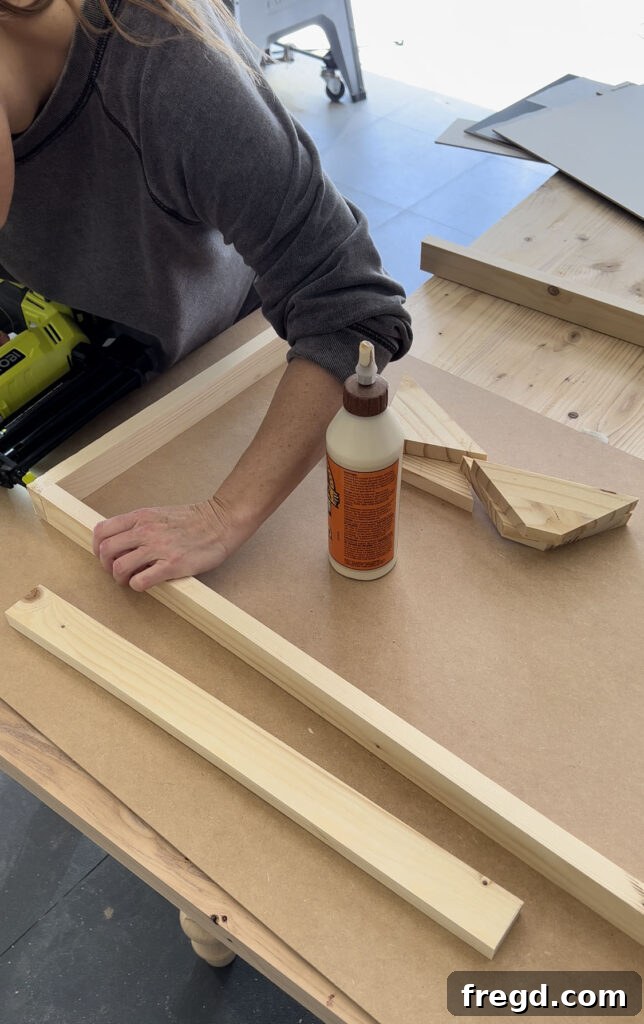
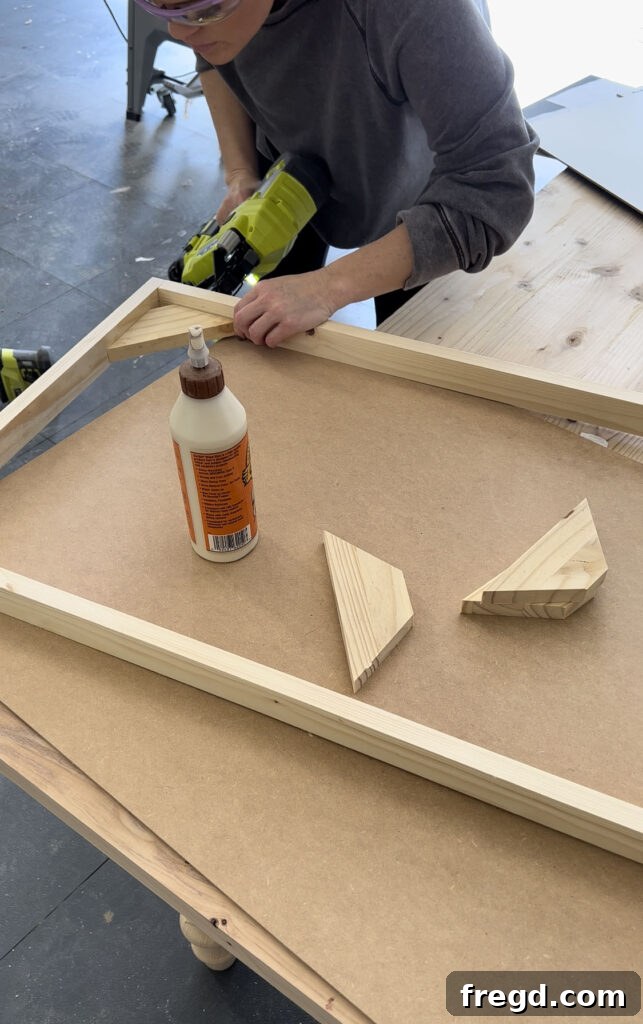
While my Glowforge was meticulously cutting out the intricate letters for the sign, I seized the opportunity to begin crafting its wooden frame. Given that I opted for a larger sign size that wouldn’t fit standard off-the-shelf frames, building a custom one was the ideal solution. I utilized readily available 1 x 2 boards, cutting them to the precise dimensions needed for my sign. To assemble the frame, I joined the corners using a combination of strong wood glue and 1 1/4″ brad nails, ensuring a secure and durable bond. For added support once the whiteboard backing was inserted, I strategically placed four triangular pieces of wood at each interior corner on the back of the frame. This method provides robust reinforcement, preventing any bowing or shifting of the sign. There are, of course, many ways to construct a frame, but this particular technique is one I frequently employ due to its speed, ease, and the fact that I often have suitable wood scraps lying around in my workshop. As an alternative time-saving tip, I often scour craft stores for open frames, especially during sales or in clearance sections. These can be incredibly inexpensive, and I can then cut my whiteboard material down to fit them perfectly, saving me the entire framing process. It’s always good to have multiple options depending on your resources and time!
Precisely Attaching Laser-Cut Letters to Your Sign
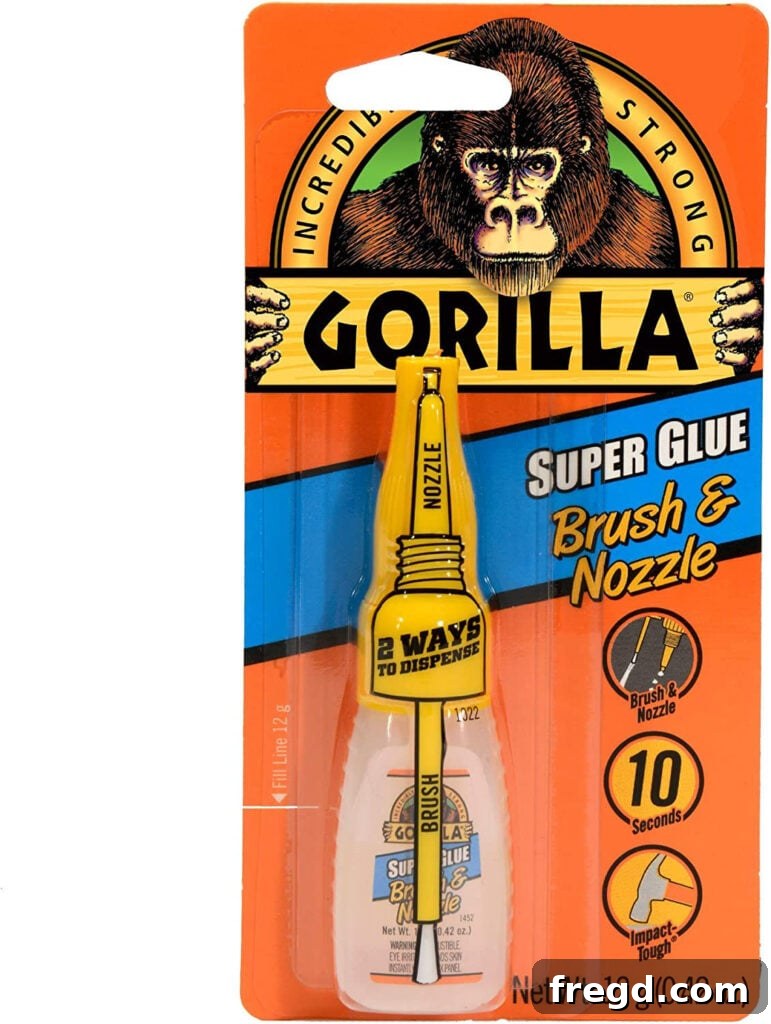
Attaching the delicate laser-cut letters to your sign’s whiteboard backing requires precision and the right adhesive. My preferred method involves attaching the letters before the whiteboard is permanently secured within the frame, which provides more flexibility and ease of access. For this task, my go-to adhesive is Gorilla Glue Brush On super glue. It’s not only economical but also incredibly easy to apply thinly and evenly to the back of each letter, ensuring a strong bond without excess squeeze-out. To guarantee perfect placement, I often use the outline of the laser-cut design (the negative space left on the material after the letters are removed) as a stencil. I lightly trace these outlines onto the whiteboard with a pencil, creating clear guidelines for each letter. Then, after brushing the super glue onto the back of a letter, I carefully position it over its corresponding pencil marking. While this glue method is my personal favorite, it’s worth noting there are other popular techniques. Many crafters utilize 3M double-sided adhesive sheets on the wood pieces, which can significantly speed up the attachment process. However, this option tends to be pricier, so I typically stick with the more cost-effective and equally effective super glue for my projects.
Final Assembly: Securing the Whiteboard to the Frame
Once all the laser-cut letters were perfectly adhered to the whiteboard backing and the glue had thoroughly dried, it was time for the final, satisfying step of assembling the sign. This process is remarkably straightforward, thanks to the triangular support pieces previously installed within the frame. I applied a generous bead of wood glue to the top surface of each of these four triangular corner pieces. With the glue applied, I carefully lowered the finished whiteboard panel into the wooden frame, ensuring it settled snugly against the supports. It’s crucial to allow the glue ample time to dry and cure completely before handling or moving the sign, typically for several hours. This ensures a durable and lasting bond, completing your custom DIY wood sign with minimal effort.
Understanding the Magic: What Exactly is a Glowforge?
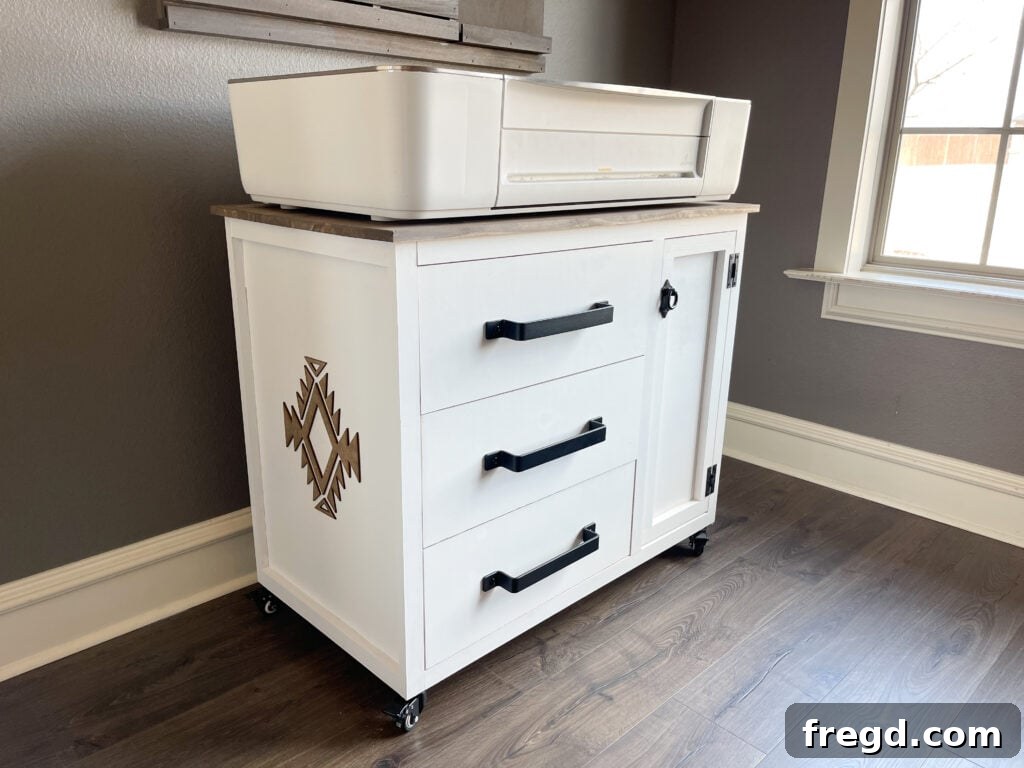
For those new to the world of digital fabrication, a Glowforge is an innovative 3D laser printer that truly makes magic happen with the simple push of a button and a focused beam of light. It’s a game-changer for crafters, small business owners, and hobbyists alike. One of its most impressive features is its incredibly simple setup process; Ashley and I had our machines unboxed, configured, and printing in less than 30 minutes – the startup is genuinely that easy! The Glowforge boasts exceptional versatility, capable of precisely cutting and engraving a wide array of materials, including various types of plywood, luxurious leather, diverse fabrics, certain acrylics, and an extensive selection of woods. Beyond basic cutting, it offers advanced functionalities like autofocus, which automatically adjusts the laser to the material’s thickness, and sophisticated 3D engraving, allowing for intricate, multi-depth designs. The machine is compatible with Mac, PC, or mobile devices, and its entire operation is controlled via a user-friendly, free web-based software, eliminating the need for complex installations. Another standout feature is the live preview camera, which provides a real-time view of your material on the cutting bed. This means you can accurately position your designs with drag-and-drop ease, seeing exactly where the laser will cut before it starts. We love our Glowforge machines so much that we each designed and built custom furniture pieces specifically to house them! You can grab the free plans for Ashley’s adorable craft cabinet HERE!
Seamless Crafting with Proofgrade Material
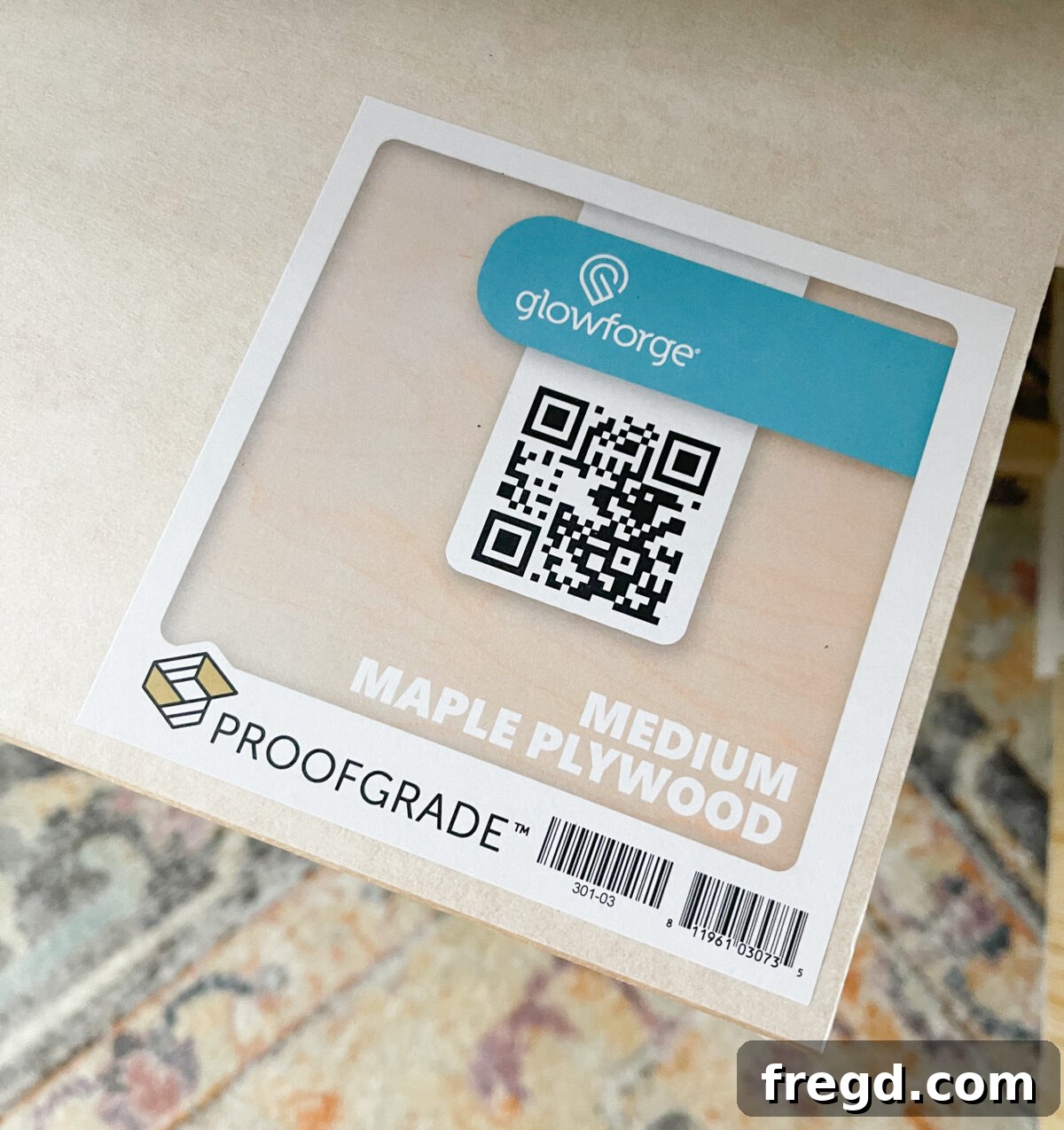
To further enhance the user experience and simplify the laser cutting process, Glowforge offers an ingenious solution: Proofgrade materials. These aren’t just any materials; they are the first of their kind specifically sourced, meticulously prepared, and then embedded with a unique QR code. Each batch is rigorously lab-tested to guarantee perfect printing outcomes, every single time. Proofgrade materials are specifically formulated and optimized for the Glowforge 3D laser printer, though they also perform exceptionally well with other CO2 laser cutter/engravers. The true genius lies in the QR code: when a Proofgrade material is placed inside your Glowforge, the machine’s camera scans the code and automatically identifies the material type. It then instantly knows and applies the perfect cutting, scoring, or engraving settings for that specific piece, eliminating all the guesswork and potential for errors. This feature is particularly invaluable for beginners, as it allows them to achieve professional results from their very first project without needing to experiment with settings. While Proofgrade materials streamline the process, the Glowforge remains fully capable of cutting and engraving a wide variety of other laser-compatible materials. However, for sheer convenience, consistency, and a worry-free crafting experience, Proofgrade materials simply make the entire process incredibly easier and more reliable.
The Invaluable Glowforge Community
Throughout our discussions and demonstrations, we’ve frequently highlighted the immense value of the Glowforge Community. My true appreciation for this vibrant online group deepened significantly once I started operating my own printer. The Glowforge Community isn’t just a forum; it’s a thriving ecosystem of passionate Glowforge makers, all eager to share knowledge, brainstorm ideas, help troubleshoot challenges, and inspire experimentation. This collective provides an incredible wealth of helpful information, from detailed tutorials to quick tips and tricks. Most posts receive insightful answers within just a few hours, showcasing the community’s active engagement and willingness to assist. You’ll consistently find someone who has either already tackled a similar project or is excited to learn alongside you. This is particularly beneficial when you’re venturing into new materials or intricate designs and are unsure about the optimal laser settings. The collective experience of thousands of users means there’s almost always someone who has tested it, sharing their successful parameters and cautionary tales. Beyond problem-solving, it’s also a fantastic platform to proudly showcase your own creative endeavors, receive constructive feedback, and draw inspiration from the astonishing creations of others. It truly transforms the individual crafting journey into a shared, collaborative, and endlessly inspiring experience.
Finding Your Perfect Match: Which Glowforge Model Suits Your Needs?
Glowforge offers three distinct models of laser cutters, each designed to cater to different needs and budgets, ensuring there’s a perfect fit for every aspiring maker. As mentioned, both Ashley and I proudly utilize the Glowforge Pro. This model stands out as their most popular offering, renowned for its enhanced speed and increased power, which translates to faster production and the ability to work with a wider range of materials. Its exclusive Pro Passthrough Slot is a key differentiator, enabling users to feed materials of virtually unlimited length, a feature invaluable for large-scale projects like custom furniture panels or extensive signage. These capabilities make the Pro model truly amazing for serious hobbyists and small businesses. In addition to the Pro, Glowforge also offers the Glowforge Plus and Glowforge Basic models. The Glowforge Plus provides a step up from the Basic with increased speed and power, making it suitable for a broader array of projects and faster output for small-batch production. The Glowforge Basic is an excellent entry-level option, perfect for beginners or those with more casual crafting needs, still offering the precision and ease of use that Glowforge is known for. You can find a comprehensive comparison of the differences and features of each machine directly on the Glowforge website, helping you make an informed decision based on your specific requirements. All models come with a robust warranty, are capable of cutting a diverse range of materials, and are packed with user-friendly features. While the initial Glowforge cost can be a significant investment, they understand this and offer flexible financing options through Affirm, making these incredible machines more accessible to everyone.
Essential Ventilation: Choosing a Glowforge Filter Solution
One crucial consideration when setting up your Glowforge laser cutter is how you plan to manage ventilation. Laser cutting processes generate fumes and particulate matter that need to be safely filtered or vented outdoors to ensure a clean and healthy workspace. Ashley currently uses the official Glowforge Air Filter, which is a convenient, compact solution designed to filter the air internally. However, through extensive research and shared wisdom from the Glowforge Community, I’ve opted for an alternative setup. I now vent my Glowforge directly out of a window using an external exhaust fan. This decision was largely influenced by the experiences of other makers who discussed the effectiveness and, importantly, the noise level of various filtration methods. My setup, which involves purchasing an exhaust fan on Amazon and directing the fumes outside, has proven to be significantly quieter than internal filtering options. This allows for a more pleasant crafting environment, especially during longer projects. The community forums are an invaluable resource for exploring different ventilation strategies, offering insights into various fan types, ducting options, and best practices for safe and efficient fume extraction.
Effortless Control with the Glowforge App
The heart of your Glowforge experience lies within the intuitive and powerful Glowforge App. This web-based software is where all the magic of preparation happens before your laser cutter springs into action. From the moment you upload your SVG designs to arranging them precisely on your material, setting the optimal cut or engrave parameters, and even previewing the final outcome in real-time, the app provides seamless control. It boasts an incredibly user-friendly interface, designed to make complex laser operations accessible to everyone, regardless of their prior experience with design software or laser technology. Because it’s web-based, you can access and control your machine from any internet-connected device – whether it’s a desktop computer, a laptop, or even a tablet. This flexibility means you can prep your projects anywhere, anytime, and send them directly to your Glowforge, streamlining your workflow and maximizing your creative potential. The app continually updates, bringing new features and improvements that further enhance its functionality and ease of use, making it an indispensable tool for every Glowforge owner.
Unlock Savings with a Special Glowforge Promo Code
I sincerely hope this detailed guide has offered you a compelling glimpse into the extraordinary capabilities of a Glowforge 3D Laser Printer. It’s truly more than just a crafting tool; it’s a significant investment that possesses the remarkable potential to pay for itself, whether through creating personalized gifts, launching a small business, or simply fueling your creative passions. Many prospective buyers often wait for major sales events, but it’s important to note that Glowforge typically does not participate in Black Friday deals or similar widespread discounts. Instead, they frequently offer exclusive promotions to their community and partners. We are thrilled to share that Glowforge has provided our readers with a special opportunity to purchase their own machine at the best available discount. By utilizing THIS LINK, you can access the most advantageous deal they currently offer on their exceptional laser printers. Don’t miss this chance to bring the incredible power of a Glowforge into your creative space and start transforming your ideas into reality!
More Inspiring Glowforge Projects!
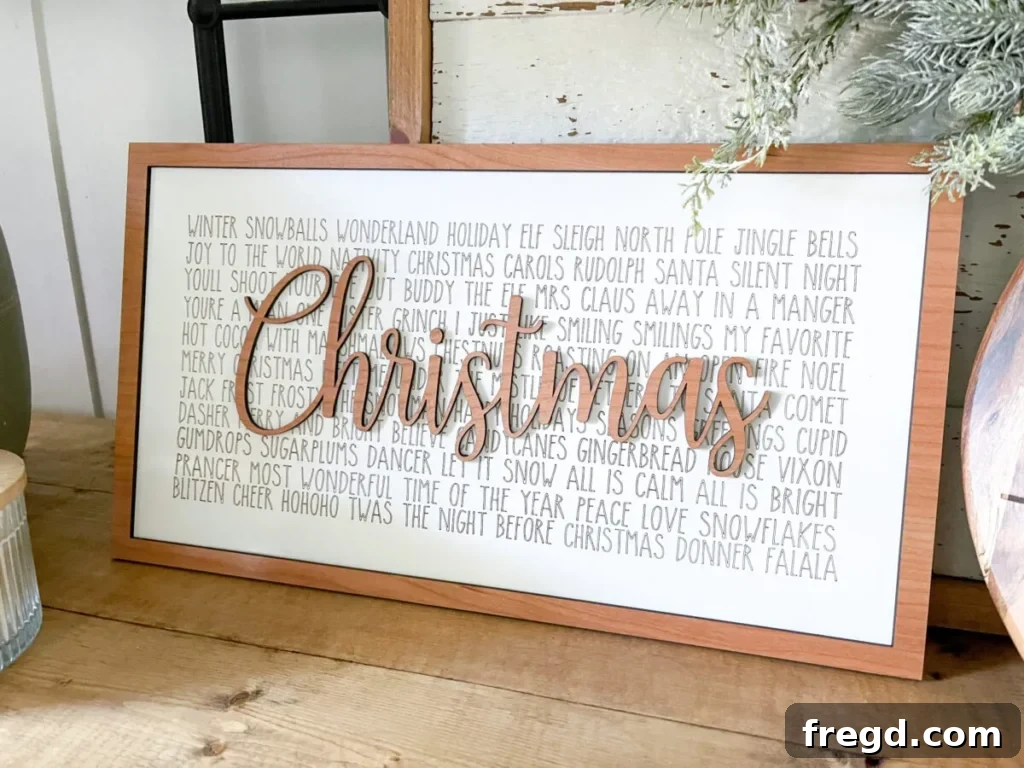
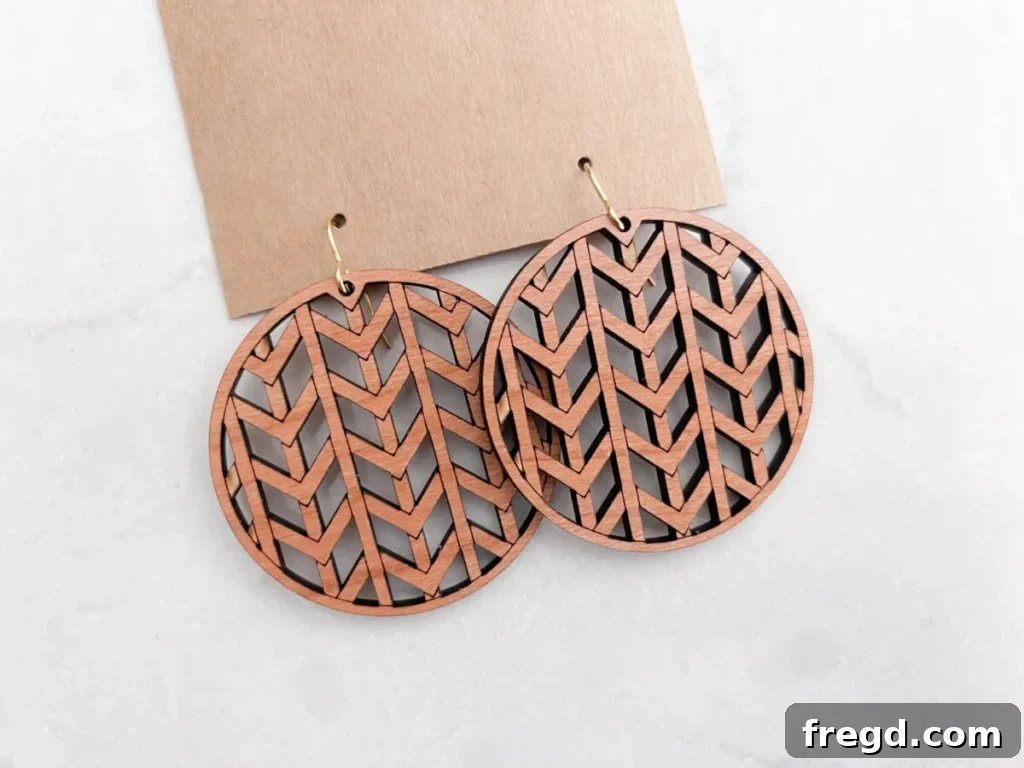
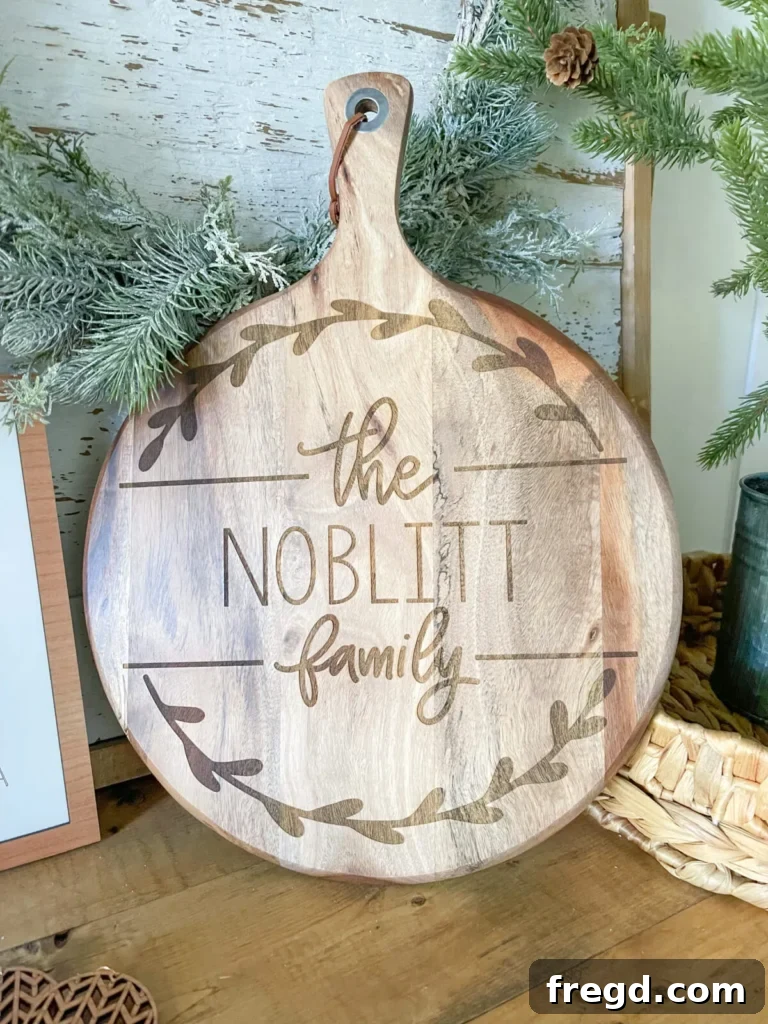
Our Glowforge Machines continually inspire us to tackle a wide variety of creative endeavors. Beyond this meaningful Thanksgiving sign, we’ve brought many other charming and practical projects to life. Take a look at some of these other delightful creations we’ve made with the precision and versatility of our Glowforge!